Changing Your Business Name on Facebook
 Wildman Web Solutions

Follow these steps to update your business name on your Facebook Page.
Step 1: Go to Your Facebook Page
Log in to Facebook and navigate to the business Page you want to update. Make sure you’re using an account with full Facebook access to manage the Page.
Step 2: Open Your Page Settings

Click Settings in the left-hand menu.
Step 3: Go to Page Setup
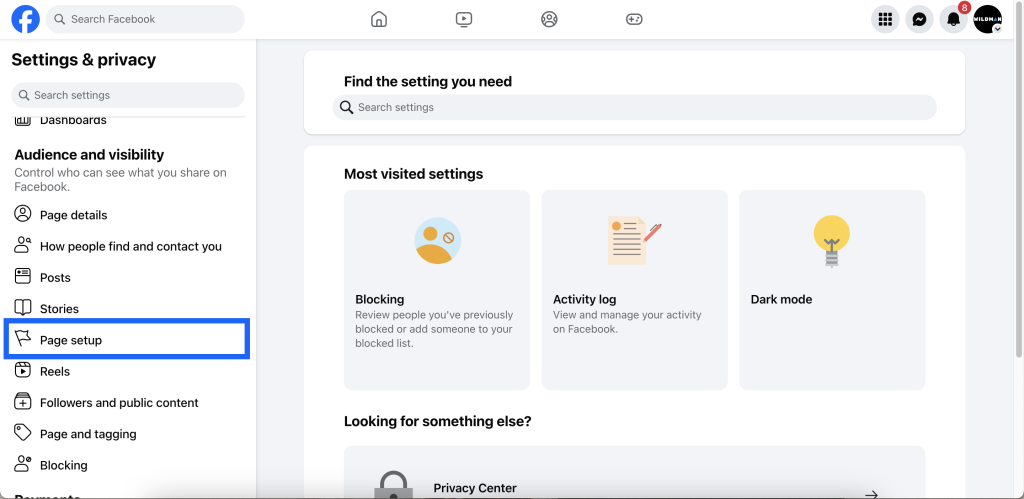
Click Page setup in the left-hand menu.
Step 4: Select Name
Click Name to access your current Page name.
Step 5: Edit Your Name
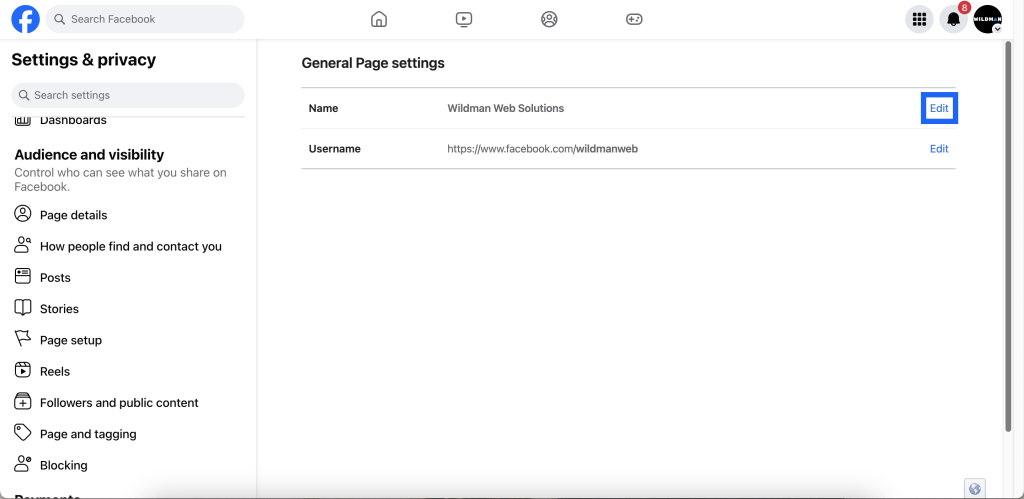
Click Edit next to your current Page name. Enter the new business name you want to use.
Double-check your new Page name before submitting your request. Facebook may restrict additional name changes if you’ve changed your Page name recently.
Step 6: Review and Submit Your Request
Follow the prompts to review and submit your name change request. Facebook may review your request before approving the change.
Step 7: Wait for Confirmation
Keep an eye on your Facebook notifications for an update. Your Page name may not change immediately while Facebook reviews your request.
Important: Changing your Page name does not automatically change your Facebook username or Page URL. You may need to update those separately if you want them to match your new business name.